
Appearance
Version 2024.3
Released October 3, 2024.
What's new
Re-allocation
Re-allocation occurs after the Picklist is created.
While re-allocating, the system searches for the most efficient way for that moment and takes into account if inventory should be allocate from a standard bin or bulk locations. This means that the initial allocation can only be seen as a stock reservation.
Bulk picks vs Fine picks
What separates Bulk Pickers (Reach Trucks) and Fine Pickers (walking pickers).
Fine picking is only applicable in the case the product has a standard bin (configurable under the Warehousing tab in product maintenance). If there is sufficient inventory on a standard bin, a fine picker will pick the inventory. In all other cases, we speak of bulk picking.
When bulk picking/replenishment is involved there are a number of rules that apply in sequence:
- Pallets that are on PICKING bins but NOT on the standard BINs (standard bins are used by fine pickers).
- Opened pallets at BULK locations.
- FIFO on BULK locations.
- If FIFO equals -> smallest QTY.
INFO
Bulk Pickers pick directly or replenish from a bin locations whose purpose is bulk or picking.
An example below is a table that indicates which picking strategy is recommended based on the re-allocation of inventory.
| product configuration | order qty | qty avbl on PICKING bin | qty avbl on BULK bins |
|---|---|---|---|
| Items DO have a standard bin | 30 | 1 x 100 | 1 x 90 |
| 1 x 100 | 1 x 80 | ||
| 1 x 100 | |||
| 1 x 70 | |||
| 1 x 70 |
| product | bin | purpose | container | qty | open/close | expires | fifo |
|---|---|---|---|---|---|---|---|
| DEMO_PRODUCT | 123 456 0 (standard) | picking | 0 | ||||
| DEMO_PRODUCT | 123 456 1 | picking | #CNTNR1 | 100 | closed | later | 1st |
| DEMO_PRODUCT | 123 456 1 | picking | #CNTNR2 | 100 | open | later | 1st |
| DEMO_PRODUCT | 123 456 1 | picking | #CNTNR3 | 70 | open | later | 1st |
| DEMO_PRODUCT | 123 456 1 | picking | #CNTNR4 | 70 | open | sooner | 1st |
| DEMO_PRODUCT | 123 456 3 | bulk | #CNTNR5 | 90 | open | later | 1st |
| DEMO_PRODUCT | 123 456 1 | picking | #CNTNR6 | 100 | closed | later | 2nd |
| DEMO_PRODUCT | 123 456 3 | bulk | #CNTNR7 | 80 | open | later | 2nd |
Picking strategy
Based on the two tables above the following picking strategy is suggested.
- Because no inventory is available on a standard bin (used by fine pickers) this scenario becomes a BULK pick/replenish scenario.
- Closed containers will not be given priority.
- a) Filtered container #CNTNR2, #CNTNR3, #CNTNR4, #CNTNR5 and #CNTNR7.
- Open container #CNTNR7 has less inventory, but it is received later.
- b) Filtered container #CNTNR2, #CNTNR3, #CNTNR4 and #CNTNR5.
- FIFO equals to containers #CNTNR2, #CNTNR3, #CNTNR4 and #CNTNR5, select the smallest quantity.
- c) Filtered container #CNTNR3 and #CNTNR4.
- d) Container #CNTNR3 expires later.
- e) Filtered container #CNTNR4.
Replenish the opened container #CNTNR4 with an earlier received_on date containing the smallest quantity and expires the soonest.
This role can only perform replenishments via the mobile app, but it can be combined with any other role.
It is not allowed for a picker to replenish.
It is not allowed for a replenisher to pick.
For this reason, the Pick and Replenish views - at the bottom of the screen - will only be displayed, if the roles are combined.
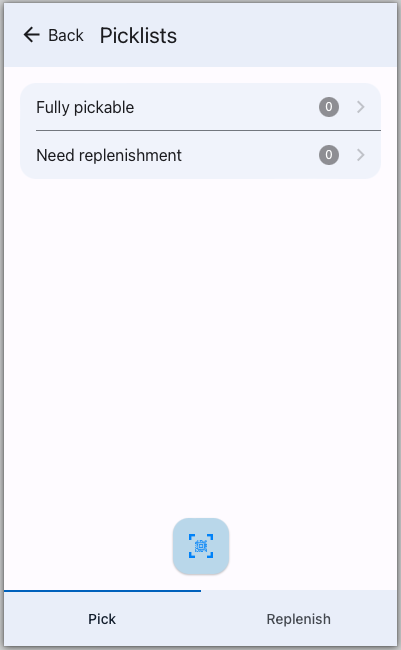
Fully pickable and Need replenishment subviews, have been added to distinguish picklists that are completely ready to be picked and picklists that still need to be replenished. The advantage of this is that pickers can already start picking while a replenisher moves inventory.
Fully pickable
Container(s) of allocated inventory are displayed. If not scanned, a popup will appear with the option to scan a different container or proceed.
No container is displayed for picklist lines that are completely picked (or picking loose inventory items).
Picklist order details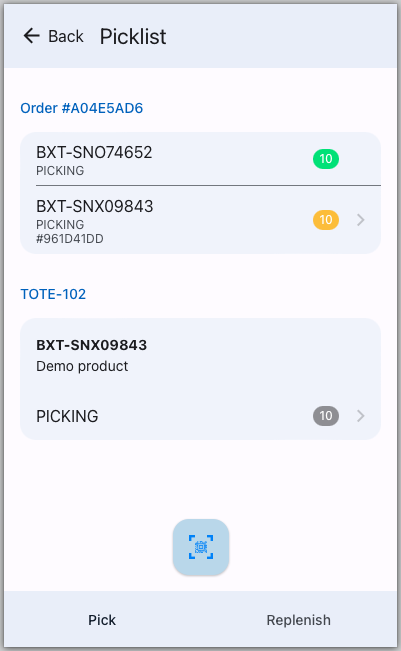
INFO
Green --> All picked
Yellow --> Revisiting a skipped line
Grey --> Pending
Picklist in different states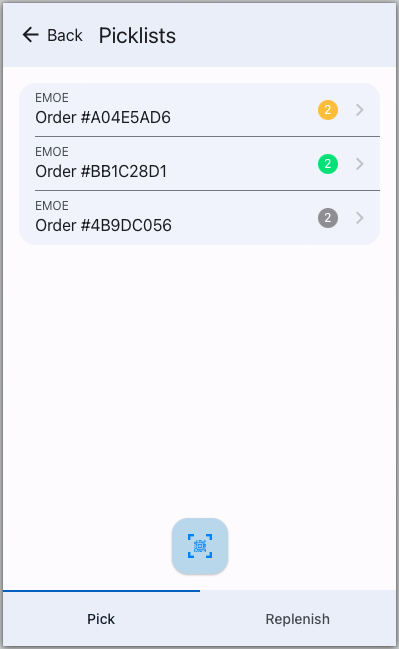
INFO
Yellow --> (partially) skipped
Green --> partially picked (waiting for replenishment)
Grey --> Pending
Note: If a picklist line is partially picked and skipped - compare both screenshots above - the picklist will display it as partially skipped in the picklist overview.
Need replenishment
A standard binlocation must be replenished if the order quantity is more than what is available.
It is allowed to replenish inventory to a non-standard bin. It is not allowed to replenish inventory to a standard bin for another product. This means that it is not possible to configure multiple bin locations for the same product.
To be able to replenish and indicate to the pickers if a product on the picklist should be replenished we give the picklist line a state - replenish. However, if no picklist can be generated because inventory cannot be allocated, visit the report Inventory On Non Standard Binlocations.
Picklist in need of replenishment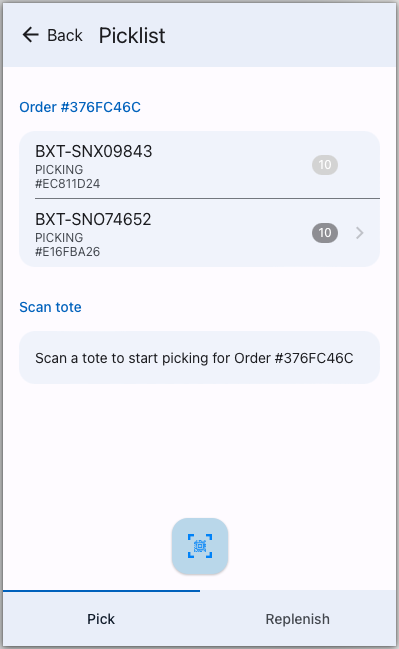
INFO
Only the 2nd picklist line could be picked, the first requires to be replenished.
A Replenish view accessible to the Replenisher role, allowing inventory to be replenished to (standard) binlocations.
Replenishment overview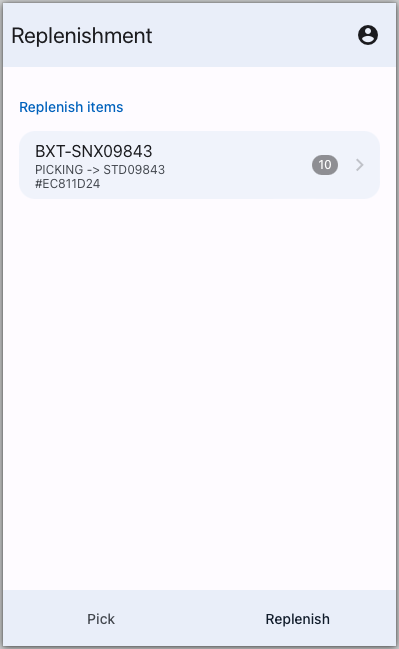
INFO
Inventory allocated to a picklist that requires to be replenished.
Replenish inventory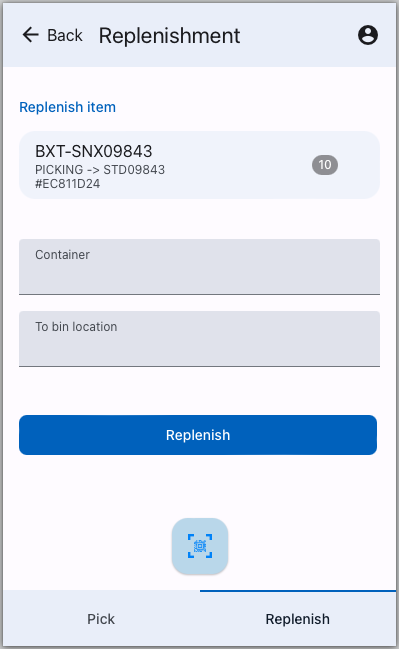
INFO
Replenish to a (standard) binlocation.
To provide the ability to replenish and/or skip bin locations during picking.
The diagram below shows what statuses a picklist line can have, inventory items will follow that state.
| From | Action | To |
|---|---|---|
| Pending | replenish | Replenish |
| Replenish | replenished | Pending |
| Replenish | cancel | Cancelled |
| Pending | pick | Picking |
| Pending | skip | Skipped |
| Pending | cancel | Cancelled |
| Skipped | pick | Picking |
| Skipped | cancel | Cancelled |
| Picking | complete | Completed |
| Picking | cancel | Cancelled |
Pending --> picklist is created, assigned or replenished.
Pending or Skipped --> first pick is done for a picklist-line.
Completed --> last pick is done for a picklist-line it will go to completed.
Skipped --> picklist line is skipped.
Replenish --> no inventory in the bin-location according to the re-allocation rules.
Cancelled --> picklist line is cancelled.
added Report Inventory on non standard bin-locationsIf a standard bin location is configured for a product, but there is no inventory on an allocatable binlocation (purpose: bulk/picking), but instead on a non-allocatable bin location, for example replenishment, a picklist cannot be generated. This report can then be used to see which stock needs to be moved to replenish the (standard) binlocations.
added Skip a bin-location while pickingIf a bin-location is inaccessible, it can be skipped via the swipe functionality in the picking app.
Simply swipe left from the order-line-item, it will be highlighted as yellow. The status of the picklist-line is updated to skipped. Revisiting the picklist and picking the skipped picklist-line(s) will update it to picking or complete, but can also be canceled by canceling the picklist.
Following rules are applied.
- Allocatable bin locations (picking, bulk, and problem) can be updated with a different purpose or zone, walkway, aisle, rack, shelf, section and bin, but only when there is no inventory in state picking.
- Non-allocatable bin locations (receiving, packing, shipping, replenishment, defective, returns, hold, kitting) can be updated at any time to a new purpose or a new bin, zone, aisle, walkway, rack, section, and shelf, with inventory on them.
Received on date is used for (re)allocation of stock. A column Received On has been added to the overview of Inventory Items.
added Default shipping method by countryIt is now also possible to set a destination country as a variable when configuring the default shipping method.
added Report Serial numbers on handA new report is added to identify which serial numbers are on hand.
added Hold-logic added to containersFrom the container context menu it is now possible to put containers on hold. Once a container is on hold, it is no longer permitted to, for example allocate or pick the container or its content.
As per the hold logic a Ticket is raised and should be used to release it.
An import Move option is available in the container overview that makes it easier to move containers to another location. From the container details page it is possible to manually move a container to another location.
added Mobile app - queryable info on bin location or containerThere are three values that can be scanned from the home-screen.
- Tote - navigates to the related order(s) and continues picking.
- Bin location - shows the values; Name, Purpose, Zone, Walkway, Aisle, Rack, Shelf, Section, Bin and for which product this bin is configured as standard.
- Container - displays the values; Name, Open or Close, Bin Location, Packing Material, State, the product(s) it contains and the overview of containers with their quantities.
We have the ability to manually create kit orders and now this is also available via the order import.
added Import sales orders columns addedExpires on and Lot has been added to the sales order import.
Improvements
Bulk pack and Ship
A new Bulk Pack and Ship option is made available. To speed-up packing and shipping during black Friday or specials, the packing/shipping process is accelerated. This feature requires that you bulk-pick orders and is especially useful for a high volume of single-product (low quantity) orders.
There are a number of conditions that the Bulk Pack and Ship process must meet.
Packing material
- This feature can only process picked containers. This means that the packaging material must be set with the 'pickable' flag enabled.
Picklist Plan
- Type: Bulk
It is not allowed to scan other picked containers than containers picked via a Bulk picklist. - Release policy : Exclusive
Release only whole orders for which all order lines match the rules.
Example: When a selection is made for a specific product and Exclusive is selected as a policy, the applicable order summary will display orders containing only that product.
If orders contain different products, they will not appear as applicable. - Fully allocated : Enabled
This ensures that the entire order can be processed and that additional order lines do not have to be processed afterwards.
- Type: Bulk
Picking
- If there are too many inventory items in the container, a warning message is displayed to pick inventory items from the container instead. Since the Bulk Pack and Ship option only allows containers as input, it is advisable to ensure that there is sufficient inventory in the container.
In this case, a Put or Merge offers the solution to replenish the container and then pick it completely.
- If there are too many inventory items in the container, a warning message is displayed to pick inventory items from the container instead. Since the Bulk Pack and Ship option only allows containers as input, it is advisable to ensure that there is sufficient inventory in the container.
A new user role is set up for accessing the Bulk Pack and Ship option. In order for the user to successfully use this option, the Picker and Packer roles will also need to be added. If this is not done, an error message will appear.
- User not allowed to pack orders.
- User not allowed to ship shipments.
Transaction logging is reduced.
changed Serial number orderingAdded functionality for serial number ordering:
- if a serial number is ordered, it is displayed in the order details as Ordered SN.
- if it is not on hand, the orderline-item will be updated to backordered (if configured).
- if the serial number is moved to a picking/bulk binlocation, it will first search for an order requesting this serial number rather than allocate it to the most recent order created.
Order lines in state pending were not automatically allocated, only (if configured) for order lines in state backordered.
changed Standard binlocation validationA standard binlocation can no longer be configured for more than one product. A product can no longer be configured for more than one binlocation.
changed Unallocation (LIFO)When allocating, the system takes into account when inventory is received or expires. This did not happen in reverse during inventory unallocation and has been resolved.
changed 3rd party integrations may allow to accept unpaid ordersA boolean setting Accept Unpaid orders is made available.
changed Shopify integrated stock file accessibility limitationWe now implemented this for admin authenticated users only.
changed Access restricted for role ReceiverUsers configured as a role Receiver, will no longer have access to Adjust Inventory or Import.
changed Calendar year navigationAbility to back and forward per year using the calendar.
changed Packing material accessibilityWhen a subaccount creates custom packaging material for use with the products/shipments, the parentaccount can then use that material.
changed Notification bell 'x'An 'x' button is now available on the notification bell to delete all notifications created.
changed Mobile app version upgradeA new framework version for the scanners has been released, resulting in improvements in the layout.
changed Visual adjustmentsSuch as dropdowns, notification bar, dark mode and comment fields have been visually improved.
changed Serial Number field no longer displayed if not applicableWe no longer show the serial number field during unpacking, sales order creation and purchase order receiving, if not applicable.
Fixes
Shopify kit product quantity corrected
In some scenarios we communicated the component quantity instead of the kit product quantity, this is resolved.
On shipping, a fulfillment message is sent, however if the shipment failed and moved back to pending the order at Shopify is fulfilled, while the order in OMS is not. We now only send the fulfillment message to Shopify once the shipment is successfully shipped.
fixed Invoice calculation Le New Black fixedThe unit price was calculated twice, both in the integration and in the invoice template. Now we calculate this only while generating the invoice.
fixed Product category not correct for shipped products reportThe product category is now displayed per product per row, which resolves the issue.
fixed Manually open a container returned a page crashEven though the page returned a 404, the container was actually opened. Now the page no longer crashes.
fixed Expand and collapse functionality is now working as expectedThe indicator, whether a side menu is collapsed or expanded did not work properly for the overview options that require double-clicking.
fixed Translation issuesVarious missing translations, fixed.