
Appearance
Version 2024.6
Released November 21, 2024.
What's new
Bulk pack and ship
A new Bulk pack and ship option is made available. To speed-up packing and shipping during black Friday or specials, the packing/shipping process is accelerated. This feature requires that you bulk-pick orders and is especially useful for a high volume of single-product (low quantity) orders.
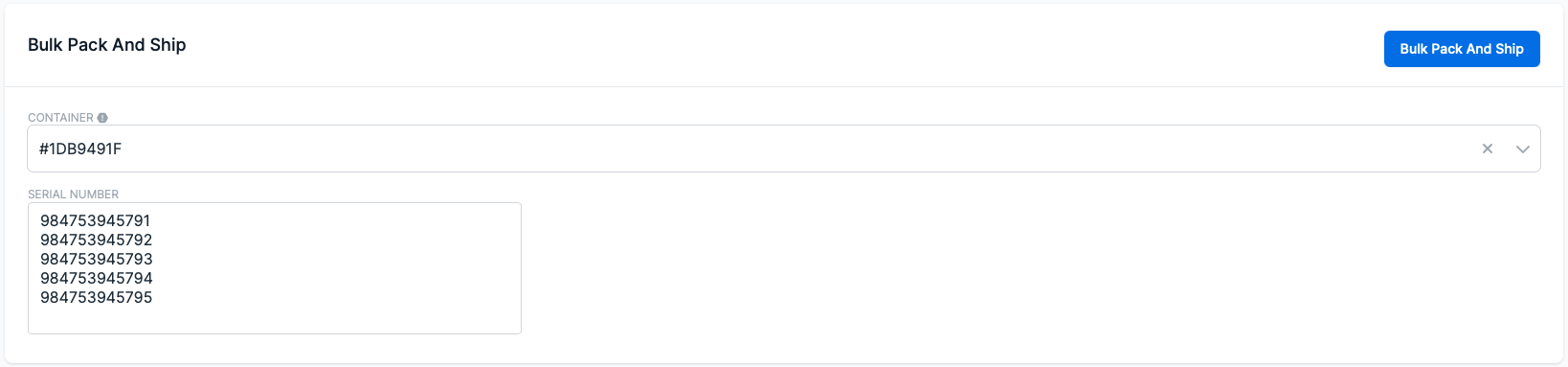 It supports processing serialization mode outbound, full and non-serialization mode products. In the latter case, the serial number text field is not displayed.
Note: serial number ordering is not supported.
As mentioned in the release notes of 2024.3 a new user role set up for accessing the Bulk pack and ship option is made available. In order for the user to successfully use this option, the Packer and Shipper roles will also need to be added. If this is not configured a failure is raised while bulk pack and shipping a container.
Additionally, there are a number of conditions that the bulk pack and ship process must meet.
Packing material
- This feature can only process picked containers. This means that the packaging material must be set with the 'pickable' flag enabled.
Picklist plan
- Type: Bulk
It is not allowed to scan other picked containers than containers picked via a Bulk picklist. - Release policy : Exclusive
Release only whole orders for which all order lines match the rules.
Example: When a selection is made for a specific product and Exclusive is selected as a policy, the applicable order summary will display orders containing only that product.
If orders contain different products, they will not appear as applicable. - Fully allocated : Enabled
The Bulk pack and ship option will ignore orders with more than one product. Simply because we immediately try to pack and ship the orders automatically. But it will not ignore single line orders with a quantity greater than one. To speed up packing and shipping of complete orders, enable the fully allocated flag.
- Type: Bulk
Picking
- If there are too many inventory items in the container, a warning message is displayed to pick inventory items from the container instead. Since the Bulk pack and ship option only allows containers as input, it is advisable to ensure that the container contains the same amount or less inventory items than required, to completely pick the container.
Papers
Commercial invoices, Packlists and Shipping labels will be printed in the same sequence. Trying to prevent papers from getting mixed, a sequence number indicator is printed in front of the order identification number on the Shipment description and parcel description.
If a shipping label (from an integrated carrier) could not be generated, a notification label (with order identification details) is printed.
Tip! When there is no Shipping method on the order, no label will be printed at all and the paperwork (label/packlist) will no longer be in line. Therefore, when making a Picklist plan, always choose a Shipping method.
The sequence of the scanned serial numbers is maintained while processing the orders. This means that the 1st scanned serial number is assigned to the first order, the 2nd scanned serial number is assigned to the 2nd order, etc. If this order has more than one order line item, the consecutive serial number that is scanned is assigned.
If we take the example in the screenshot above, this could be a possibility (regardless of outbound- or full serialized products):
Order 1 - 649E1F7B serial number: 984753945791
Order 2 - 839S30B2 serial number: 984753945792, serial number: 984753945793
Order 3 - 6A0A9B2T serial number: 984753945794
Order 4 - 83S0JB34 serial number: 984753945795
Fixes
Auto-ship failure message fixed
If an account uses auto-ship while packing, no failures are raised if shipping a shipment fails (e.g. unable to generate a waybill label due to an invalid zip code). This is now resolved. If a shipping label is not created due to this e.g. postcode validation failure, it will display the appropriate failure pop-up.
Improvements
Commercial invoice template update
The customs price of the product will override the product price (existing functionality), but if the order line price is present, this will be printed on the invoice.
An authentication key can be configured per location for an integrated via settings.
changed Kit configuration restriction extendedIt is allowed to modify a component of a kit product and add a kit product as an component.
changed Frames around the dropdown highlightedOnce a dropdown is active the frame is now highlighted.