
Appearance
Signing in
Boxture is a web application: you use it in a browser on a desktop, laptop or tablet. Warehouse staff on handheld scanners use the same user account in the mobile app. This page explains how to sign in, how to reset a forgotten password, how two-factor authentication (2FA) works and when you are signed out automatically.
Getting a user account
You cannot sign up for Boxture yourself. A user account is created for you by an administrator, or by the account owner of your company (see Users and roles). The person who creates your user decides:
- which account you belong to (your company, or a sub-account of it);
- which roles you have, which determine which menu items and actions you see;
- your main location (warehouse) and, optionally, the specific locations you may access;
- whether two-factor authentication is required for you.
Your user name is your e-mail address. E-mail addresses are not case-sensitive, so Jane@Example.com and jane@example.com are the same user.
Logging in
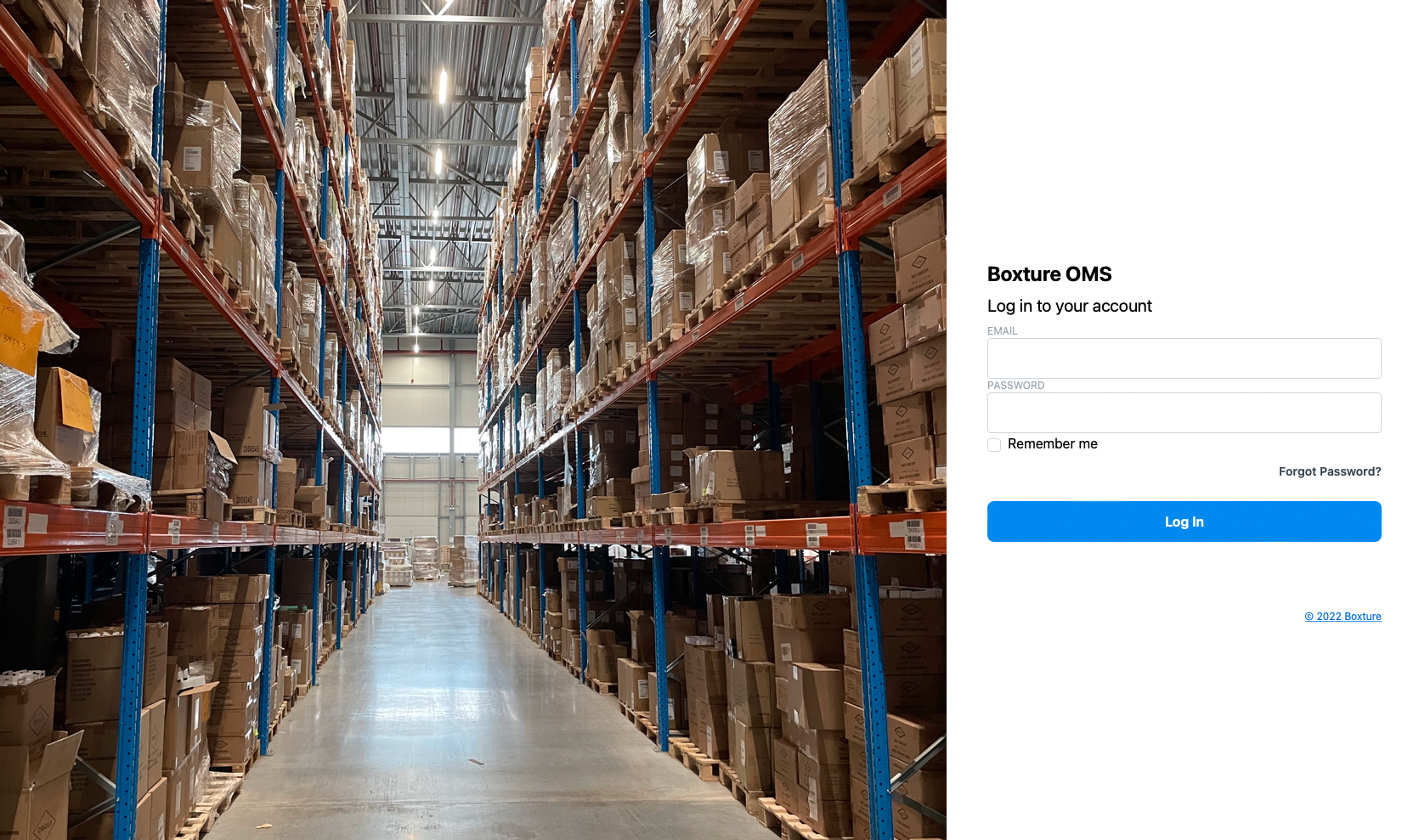
- Go to the Boxture address your organisation uses. You see the Log in to your account screen.
- Enter your Email and Password.
- If two-factor authentication is active for your user, a 2FA Code field appears below the password as soon as you have typed your e-mail address. Enter the six-digit code from your authenticator app.
- Optionally tick Remember me (see below).
- Click Log In.
After logging in you land on the dashboard, working in your own account and your main location. You can switch to another account or location from the top bar; see Navigating Boxture.
You may not be able to log in when...
- your user has been deactivated by an administrator, or
- the account your user belongs to has been disabled.
In both cases the login is refused even with the correct password. Contact your administrator or account owner. An account that is merely inactive still allows its users to log in.
Remember me
When you tick Remember me, Boxture keeps you signed in on that browser, even after you close it, for up to two weeks. Logging out explicitly ends this: all "remembered" sessions of your user are forgotten when you log out. Do not use Remember me on shared computers in the warehouse.
Forgot your password
- On the login screen, click Forgot Password?.
- On the Forgot your password? screen, enter your e-mail address and click Get new password.
- You receive an e-mail with a link to change your password. The link is valid for 6 hours.
- Click the link. On the Change your password screen enter a New password (at least 6 characters) and repeat it in Confirm your new password.
- Click Change my password.
- You are returned to the login screen. Log in with your new password.
No e-mail received?
Check your spam folder and that you used the exact e-mail address of your Boxture user. If you still receive nothing, an administrator can set a new password for you on your user (Admin › Users & Accounts › Users, Security tab).
Changing your password when you are logged in
You do not need the reset e-mail to change a password you still know. Open your profile (click your avatar in the top-right corner, then Profile), fill New password and New password confirmation on the About tab and save. See Profile.
Two-factor authentication (2FA)
Two-factor authentication adds a second step to logging in: besides your password you enter a six-digit one-time code generated by an authenticator app on your phone (for example Google Authenticator, Microsoft Authenticator, 1Password or Authy). The code changes every 30 seconds, so a stolen password alone is not enough to get into Boxture.
When 2FA is required
2FA is switched on per user by an administrator, with the Two factor required switch on the user's Security tab. When it is on and you have not yet set up an authenticator app, Boxture sends you to the Setup 2FA screen right after you log in. You cannot use any other part of Boxture until 2FA is set up.
Setting up 2FA
- Log in with your e-mail address and password. You arrive at Setup 2FA.
- Open your authenticator app and add a new account by scanning the QR code on the screen. The entry in your app is named after Boxture and the server you use, followed by your e-mail address.
- Type the six-digit code your app now shows into the 2FA Code field.
- Click Enable.
If the code is correct, 2FA is active and you continue to the dashboard. If the code is wrong (for example because it expired while you were typing) the setup screen is shown again with a new QR code: remove the entry you just added from your app and scan the new code.
Logging in with 2FA
From now on the login screen shows the 2FA Code field after you enter your e-mail address. Enter the current code from your app together with your password.
Lost your phone?
If you can no longer generate codes (new phone, app removed), ask an administrator to reset your 2FA. On your user the administrator chooses Reset 2FA from the menu. Your authenticator registration is cleared; the next time you log in you only need your password, and if 2FA is still required for you, you set it up again with a new QR code.
Logging out
Click your avatar in the top-right corner and choose Logout. Boxture asks Are you sure you want to logout?; confirm to end your session.
When an administrator is working as you (impersonating your user to help you), the profile menu shows Stop Impersonating instead of Logout; that returns the administrator to their own user.
Automatic sign-out
For security, Boxture signs you out after 4 hours without activity in the web interface (unless you used Remember me). The next time you click something you are asked to log in again. Unsaved input on the screen you were on is lost, so save your work before you leave your desk for a long time.
Signing in on the mobile app
The handheld apps use the same e-mail address, password and 2FA code as the web interface. See Mobile app for how warehouse devices are set up and how staff sign in on them.