
Appearance
Picking on the mobile app
Picking means collecting the products of one or more orders from their bin locations into a tote. Boxture groups the work into pick lists: each pick list has one line per product and bin location, and tells you how many units to take. On the mobile app you open a pick list, scan a tote, walk the route the app shows you, and scan or swipe each pick. When a pick list is done, the app opens the next one for you.
This page is written for the picker holding the scanner. How pick lists are created is explained in Pick list plans and Pick list waves.
Finding your pick lists
The Picking dashboard
When you open the app you see the Picking dashboard with the card Picklists:
| Row | What it contains |
|---|---|
| All | All open pick lists in your location: not yet assigned, assigned to someone, or being picked. Only shown when picking pending pick lists is allowed in your location. |
| My | The open pick lists assigned to you. |
The badge shows the number of pick lists. Tap a row to open the pick list overview.
Pending picking allowed
With the setting Pending picking allowed switched off, pick lists must be assigned to a picker in the desktop application before they can be picked. The All row and the Fully pickable row are then hidden, and you only see the pick lists assigned to you under My.
Fully pickable and Need replenishment
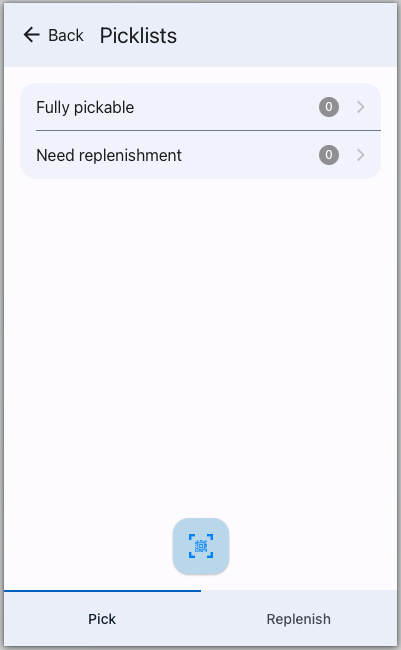
The overview (Picklists) splits the pick lists in two:
| Row | What it contains |
|---|---|
| Fully pickable | Pick lists of which every line can be picked now. |
| Need replenishment | Pick lists with at least one line waiting for replenishment: the stock for that line is still in bulk storage and has to be moved to the product's standard bin location first. You can already pick the other lines. |
Tap a row to see the pick lists in it. Each pick list shows the name of the account(s) it picks for, the pick list name and a badge with its number of lines. The badge is yellow when lines of the pick list were skipped and green when lines are already completed. When the list is empty the app shows You are all done!.
Tap a pick list to open it.
Opening a pick list by scanning a tote
On the dashboard and the overview you can also scan a tote instead of tapping a pick list. Boxture then opens:
- the open pick list that is already being picked into this tote; otherwise
- the oldest open pick list assigned to you; otherwise
- the oldest open pick list of your location.
The pick list is assigned to you and opened with that tote already selected. See Information scan for everything else you can scan there.
The pick list screen
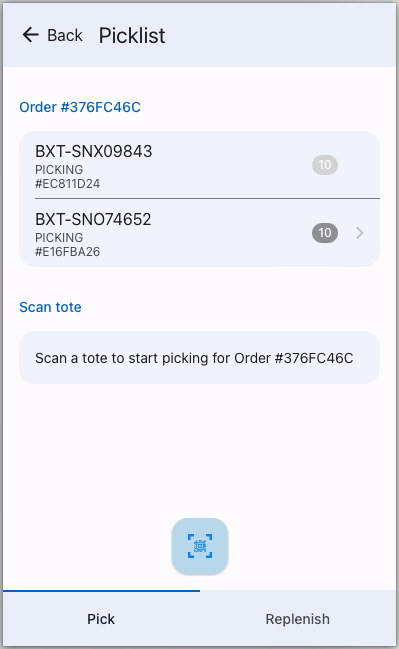
From top to bottom the pick list screen shows:
- The wave (only when the pick list is part of a pick list wave): the wave name, how many of its pick lists are done out of the total, and a progress bar.
- The pick list name and all its lines, in walking order. Each line shows:
- the product number;
- above it, the bin location (or
-when the line has no bin location); - below it, up to three containers that hold stock for this line (
...when there are more); - a calendar icon when the line asks for a specific expiry date, and a number icon when it asks for a specific lot;
- a badge, see the table below.
- The current pick: either Scan tote, or a card with the product you have to pick now.
| Badge | Meaning |
|---|---|
| Grey with a number | Units still to pick on this line. |
| Green | The line is completed; the number is the total quantity. |
| Yellow | The line was skipped earlier and is now available to pick again. |
| Highlighted (skipped) | The line was skipped in this round. |
| Replenishment badge | The line is waiting for replenishment and can't be picked yet. |
Walking order
When a pick list is opened, Boxture sorts its lines into the shortest walking route through the warehouse, starting at the bin location where you finished your previous pick list (or the pick start location of the warehouse). Skipped lines are moved to the end of the route. The route uses the walking distances configured for your warehouse (see Warehousing setup).
Step by step: picking a pick list
1. Scan a tote
Before you can pick anything you have to tell Boxture which tote you are picking into. The card Scan tote says Scan a tote to start picking for followed by the pick list name. Take an empty tote and scan its barcode.
- The message Using tote followed by the tote name confirms the tote.
- Tote is not active: the tote is switched off in Boxture, take another one.
- Tote is already in use: the tote belongs to another pick list (or, for batch picking, to another order). Take another tote.
- Please scan the tote that you are using first: you scanned something else before scanning a tote.
The tote name is shown above the product card for the rest of the pick list. You can scan another tote at any time to continue in a different tote, for example when the first one is full.
Batch pick lists
A batch pick list contains several orders that are each picked into their own tote. The app shows the tote and the order you are picking for (tote - order). When the order already has totes, the app asks you to Scan tote for order followed by the order and its totes. When everything for the current order has been picked from this line, the app moves to the next order and asks for its tote again. See Pick list plans for the pick list types.
2. Go to the bin location
The product card shows what to pick now:
- the product image (when the product has one), the product number and name;
- the product description, when Display product description is switched on for your location;
- Lot: and Expires: when the line asks for a specific lot or expiry date;
- icons on the right:
| Icon | Meaning |
|---|---|
| Barcode viewfinder | You must scan here, swiping is not enough (see When you have to scan). |
| Sliders | The product is not marked as scannable. |
| Calendar | A specific expiry date is required. |
| Number | A specific lot is required. |
Below that is a row with the bin location (or NO BIN) and a badge with the quantity to pick (for batch pick lists: the quantity for the current order). Walk to that bin location.
3. Pick the products
You can register picks in three ways.
Scan the product. Scan the product barcode (product number, EAN/UPC or one of the product's aliases). Every scan picks one unit. The message Pick registered confirms it and the badge counts down.
Scan a serial number. For serial-numbered stock, scan the serial number of the unit you take. Boxture picks exactly that unit. If the product gets its serial number when it leaves the warehouse and the scanned serial number is not known yet, Boxture registers it on one of the units you are picking.
Swipe. Swipe the bin location row to the right to show the pick buttons:
- Pick one picks one unit;
- Pick all picks the whole remaining quantity of the line (for batch pick lists: for the current order).
Which of these buttons you see is set by Mobile picking options: Both, Pick All or Pick One.
When the line is complete, the app shows the next line on the route.
When you have to scan
Swiping only works when Boxture does not need to know which exact unit you take. You must scan (and get Please scan the item that you are picking when you swipe) when:
- the stock on the bin location has serial numbers, or the order asks for a specific serial number;
- you are taking products from a container that holds more than one product or contains other containers.
The barcode viewfinder icon on the product card tells you this in advance.
4. Picking from containers
When the stock is stored in containers (pallets, boxes, cases), the line shows the containers that hold the stock. Scan the container barcode. Boxture checks:
| Check | Message when it fails |
|---|---|
| The container is on the bin location of the line | Please scan a container on bin location followed by the bin location |
| It contains the product, with the right lot and status | Please scan a container containing followed by the product number that matches the required criteria |
| The stock in it has not expired (unless you are picking for a scrap order) | Could not register pick, inventory expired. |
| The container is not on hold | The scanned container ... is on hold and cannot be picked |
When the container is not the one Boxture reserved for this pick list, a Warning appears: This container is not allocated to this picklist, scan container ... or continue ?. Tap Cancel and scan the suggested container, or tap Continue to pick from the container you scanned anyway; Boxture then swaps the reserved stock for the stock in this container.
What happens next depends on what is in the container:
- The whole container is needed. When the container holds exactly the stock this pick list needs from this bin location (nothing more), Boxture picks the whole container in one go: all its contents are picked and the container itself moves into your tote.
- You need only part of it. When the container holds more than you need (or its packing material is not pickable as a whole), you start taking products from the container. The product card then shows the bin location, the container and its contents, and the quantity to pick. Scan the products (or swipe Pick one / Pick all when scanning is not required) to take them out of the container.
When you are done with a container, scan the container again: No longer taking products from container. The app also stops using the container on its own when the next line can't be picked from it.
Auto-retire containers
With Auto retire containers switched on, a container that becomes empty because you took the last product out of it is retired automatically, so it no longer shows up in the bin location.
5. Finish the pick list
After the last line, Boxture completes the pick list and immediately assigns and opens the next pick list for you: the open pick list with the nearest line to where you are now, from the same group (All or My), the same type (fully pickable or needs replenishment) and the same wave. The message is Picklist fully picked, next picklist opened. When there is nothing left to pick, you see Picklist fully picked. and return to the dashboard.
If some lines are waiting for replenishment, the message is Pick completed, revisit picklist once inventory is replenished (with next picklist opened or all done). The pick list stays open until those lines have been replenished and picked.
When the pick list is completed, the picked order lines are ready for packing. With Auto pack switched on, Boxture packs the orders automatically instead.
Skipping a line
When you can't pick a line right now (the bin location is blocked, the stock is not where it should be), skip it:
- Swipe the line in the list of lines to the left.
- Tap Skip.
The message Skipped picklist line. appears. The line is moved to the end of the route and gets the skipped badge, and the app continues with the next line. When the pick list is part of a wave, the same product on the same bin location is also skipped on the other pick lists of the wave, so your colleagues don't walk to the same empty bin.
When only skipped lines are left, the app opens the next pick list for you (Revisit picklist, next opened.) or returns to the dashboard (Some picklist line(s) have been skipped or picked, all done.). The pick list is not completed: it stays open with the skipped lines. When you (or a colleague) open it again later, the skipped lines get a yellow badge and can be picked again.
TIP
Use Skip when the stock will probably be there later. When stock is really missing or damaged, ask your supervisor to report a picking problem, so the stock and the orders are put on hold.
Undoing a pick (unpick)
If you picked one unit too many or the wrong product:
- On the product card, swipe the bin location row to the left.
- Tap Unpick. This button is only there when something has been picked on the line.
Every Unpick undoes one unit: the unit is taken out of your tote and is again waiting to be picked. Put the product back on the bin location. When you are taking products from a container, the unit is put back into that container. The message Pick undone confirms it.
Reporting a problem
The mobile app has no Problem button; the Boxture Picker app has. When a picker reports a problem there, they choose a reason (for example damaged or missing stock). Boxture then:
- puts the pick list, and every other open pick list with the same product on the same bin location, on hold;
- puts the stock of that product on that bin location, and the order lines waiting for it, on hold;
- creates a ticket with the chosen reason for the bin location and the affected orders.
Supervisors handle these on the desktop, see Picking problems and Problems.
What changes in Boxture while you pick
| Moment | Pick list | Pick list line | Products |
|---|---|---|---|
| Pick list opened by tote scan, or next pick list opened | Assigned to you | ||
| First pick | Picking | Picking | Moved from the bin location into your tote |
| Line done | Completed | ||
| Line skipped | Skipped | Stay on the bin location | |
| Unpick | Back to waiting to be picked | ||
| Last line done | Completed | Order lines picked, ready to pack |
A pick list being picked by a colleague can't be picked by you at the same time; Boxture refuses the pick. See Pick lists for all pick list states and how to reassign pick lists.
Common messages
| Message | What to do |
|---|---|
| Please scan the tote that you are using first | Scan the tote before scanning products or containers. |
| Please scan something other than a bin location | Bin location barcodes are not used while picking; scan the product, container or tote. |
| Please scan the item that you are picking | This line must be scanned; swiping is not allowed. |
| No need to scan the tote/container | There is nothing left to pick on this pick list. |
| Could not register pick, please try again | The scanned product does not match the line, or the stock is not available. Check the product and scan again. |
| Tote is already in use | Take another tote. |
| container is not pickable, pick items from it instead | Take the products out of the container one by one. |