
Appearance
Product details
Opening a product shows the Product card with a row of tabs. Below the card, saved products also show the settings that apply to this product only. This page goes through every tab and field.
At the top of the card are the save buttons (Update and continue editing and Update Product, or Create… for a new product) and the product menu with Publish, Expire or Republish, depending on the product's state. See Product lifecycle.
Attributes
The main identification and tracking settings of the product.
| Field | What it does |
|---|---|
| Product category | Optional. One of the active product categories of the account. |
| Number | Required. The product number or SKU. Unique per account, not case-sensitive, and always saved in uppercase. Can't be changed once the product has inventory. |
| EAN/UPC | Optional barcode of 8, 12 or 13 digits. Must be unique within the account, also across aliases. |
| Name | The product name shown next to the number throughout the app. |
| Description | Rich-text description. Can be shown in the picking app when Picking › Display product description is on. |
| Vendor | Optional. The vendor that supplies the product, chosen from the account's vendors. |
| UN number | The four-digit UN number for dangerous goods (hazardous materials). It appears in the product list and on inbound reports. |
| Scannable | On by default. Means the product has a barcode that can be scanned. In the picking app, a pick list line whose products aren't scannable is marked with a separate icon, so the picker knows there is no barcode to scan. |
| Expirable | Inventory of this product has an expiry date. An expiry date is then required when receiving or adding inventory. |
| Inventoriable | On by default. When off, Boxture doesn't keep stock for the product. See Non-inventoriable products. |
| Setup complete | Marks the product as fully set up. See Setup complete. |
| Insert | Marks the product as an insert: something that goes into the box with an order, such as a leaflet or a thank-you card. |
| Lot tracked | Inventory of this product has a lot number. A lot number is then required when receiving or adding inventory. When switched on, the Lot pattern field appears. |
| Lot pattern | Optional regular expression. Lot numbers entered for this product must match it, e.g. ^[0-9]{4}[A-Z]{2}$. |
| Serialized | Each unit of this product has its own serial number. When switched on, Serialization mode and Serial number pattern appear. |
| Serialization mode | Outbound: serial numbers are required when packing. Full: serial numbers are required at every step, from receiving to shipping. |
| Serial number pattern | Optional regular expression. Serial numbers entered for this product must match it. |
How lots, expiry dates and serial numbers are handled in the warehouse is explained in Serial numbers, lots and expiry.
Locked once there is inventory
Number, Expirable, Inventoriable, Lot tracked, Serialized and Serialization mode can't be changed while the product has inventory that isn't retired. Saving shows "change not allowed when there is inventory".
Setup complete
Setup complete is a checkpoint for products that need to be fully configured before anyone handles them. On its own it does nothing. It takes effect when the account setting Inventory › Restrict transactions to setup complete is on, for the whole account or for this product. Then, for a product that isn't set up complete, Boxture blocks:
- receiving it,
- adjusting its inventory,
- allocating it on orders (also when it is a component of a kit being allocated),
- building kits with it,
- packing it, and
- shipping it.
The error shown is "PRODUCT is not setup complete". Switch on Setup complete on the product, save, and try again.
Non-inventoriable products
Switch off Inventoriable for things you sell but don't keep in stock, such as a service, a digital product or a free gift that's always available. For such a product:
- Order lines are allocated straight away, without looking for inventory.
- Picking doesn't move any inventory for it.
- It can't be received on purchase orders or other receiving orders, and its inventory can't be adjusted.
- It is left out of the stock levels sent to shop integrations.
Aliases
Aliases are alternative numbers and barcodes for the same product. Use them when a sales channel or a customer uses its own SKU or barcode. Each alias row has:
| Field | What it does |
|---|---|
| Channel | Optional. The channel this alias applies to. Leave empty for an alias that applies everywhere. |
| Number | The alias number. Must be unique within the account for the same channel, and can't be the number of another product. |
| EAN/UPC | Optional alias barcode. 8, 12 or 13 digits, unique within the account. |
| Metadata | Optional extra data in YAML. Has no effect on how Boxture works. |
When an order or message refers to a product number, Boxture first looks for a product with that number, then for an alias for that channel, and then for an alias without a channel. When you search or scan, aliases' numbers and barcodes are matched too.
Click the + to add an alias row and the bin icon to remove one.
Kitting
Add component products here to turn the product into a kit. Each row has a Component product and a Quantity (how many of that component go into one kit). Only active products can be selected as components. See Kits for how kits work.
Packaging
The packing materials that are used to pack this product, for example a protective sleeve or a gift box. Each row has:
| Field | What it does |
|---|---|
| Location | The location where this packaging is used. Leave empty for all locations. |
| Packing material | A packing material of the account. |
After saving, drag rows by the grip icon to change their order.
Product packaging comes into play during packing when Packing › Select product packing materials is on for the location: the packer then has to select exactly the packaging set up for the product at that location. When Packing › Consume product packing materials is also on, the selected packing materials are taken out of inventory (from a bin location with purpose packing) as the product is packed. If there isn't enough of a packing material in stock, packing stops with an error. See Packing.
Warehousing
Standard bin locations
For each location you can set one Standard bin location: the fixed picking bin for the product in that warehouse. Each location can appear only once.
- When a pick list is released, Boxture assigns the inventory to pick from the standard bin location first, then from other picking bins, and finally from bulk bins. When stock has to come from elsewhere, the pick list line can be marked for replenishment. See Replenishment.
- A bin location can be the standard bin of only one product. Choosing a bin that's already assigned shows "is already assigned to product
NUMBER". - Other products can't be put into a bin location that is the standard bin of a product: adjusting or moving inventory of another product into it is refused.
- You can't change or remove a standard bin location while open pick list lines are picking from it ("is being picked from").
- The Inventory on non-standard bin-locations report shows stock that isn't in the standard bin.
Unit of measure and pack sizes
These fields describe how the product is packed by the supplier. They're used for information and planning.
| Field | Meaning |
|---|---|
| UOM | Unit of measure. Only each is available. |
| Quantity Inner Pack | Units in the smallest pack (total in units). Must be greater than 0. |
| Quantity Case | Units in a case (total in units). Normally Quantity Inner Pack × Quantity Inner Packs Per Case. Must be greater than 0. |
| Quantity Pallet | Units on a pallet (total in units). Normally Quantity Case × Quantity Cases Per Layer × Quantity Layers Per Pallet. Must be greater than 0. |
| Inner Pack Type, Case Type, Pallet Type | The packing material used for each level. |
| Quantity Inner Packs Per Case | Inner packs in one case (stacking). |
| Quantity Cases Per Layer | Cases in one pallet layer (stacking). |
| Quantity Layers Per Pallet | Layers on one pallet (stacking). |
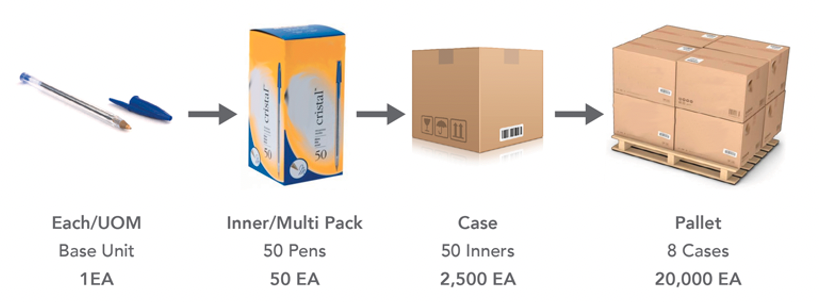
Example: a pen is stored in inner packs of 50, 50 inner packs go into a case, 4 cases make a layer and a pallet has 2 layers. Then Quantity Inner Pack is 50, Quantity Case is 2,500 and Quantity Pallet is 20,000.
Pricing
| Field | What it does |
|---|---|
| Cost price and currency | What the product costs you. Used for insurance and loss claims and can be required by carriers. |
| Country code, Price, Price currency | The selling price. The row without a country is the default price. Add rows with a country for country-specific prices; each country can appear once. |
New prices use the account's default currency. When you choose a product on an order line, Boxture fills in the price for the order's billing country (or, if there is none, the delivery country), and falls back to the default price.
Dimensions and Weight
| Field | What it does |
|---|---|
| Weight and Weight unit | Weight of one unit, in g, kg, lbs or oz. If you fill in one, you must fill in both. |
| Length, Width, Height and Dimensions unit | Size of one unit, in mm, cm, ft, in or m. If you fill in any of them, you must fill in all four. |
Weights and dimensions are passed on with parcels and shipments, for example to carriers.
Customs
Used on customs documents and by carriers for international shipments.
| Field | What it does |
|---|---|
| HS code | The Harmonized System code that customs uses to classify the product. |
| ECCN | The Export Control Classification Number, which decides whether an export license is needed. |
| Origin Country | The country where the product was made. |
| Customs value and currency | The value declared to customs. It replaces the price on paperwork and is filled in on order lines when you choose the product. The currency defaults to the account's default currency. |
| Customs description | Free-text description for customs clearance. |
Media
Upload one or more product images. Images help warehouse staff recognise the product. With an import you can add images by URL.
Metadata
| Field | What it does |
|---|---|
| Notes | Free-text internal notes. |
| Metadata | Extra key/value data in YAML, for example from an integration. Has no effect on how Boxture works. |
Product settings
Saved products show their settings below the product card. These settings apply to this product only. See Product settings.
| Setting | What it does |
|---|---|
| Reorder level | The stock level, in units, below which the product counts as low on stock. Can be set per location. When inventory is retired (for example after shipping) and the remaining stock of that status at the location drops below this level, Boxture triggers the low-stock event, which you can use for an e-mail through Messaging. Default 0, meaning no low-stock events. |
| Reorder quantity | How many units to reorder when the stock falls below the reorder level. Can be set per location. Stored for your reference; Boxture doesn't create orders from it. |
| Kit to order | For kits only: whether this kit may be put together from its components when it's ordered. When empty, the account setting Kit › Kit to order applies. See Kits. |